


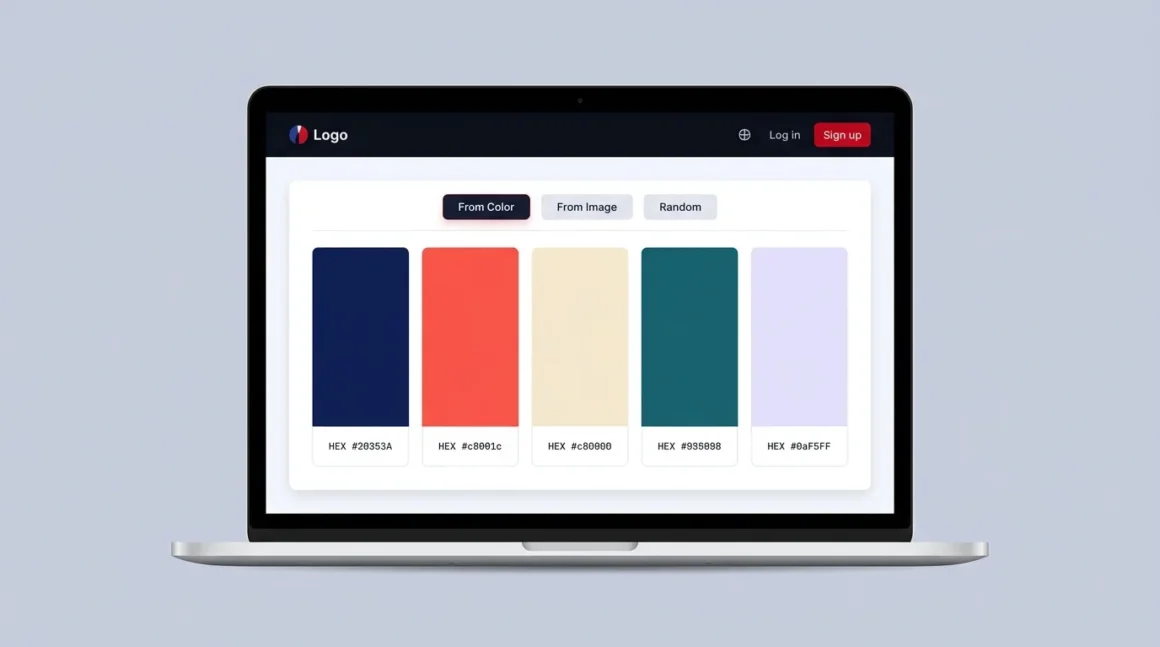
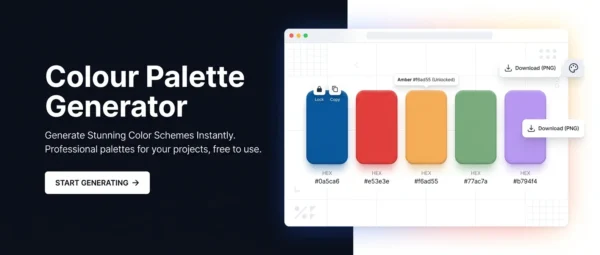
Create professional colour palettes in seconds using proven colour theory. Whether you’re designing a website, building a brand identity, or looking for colour scheme inspiration, our free colour palette generator produces five beautifully coordinated colours based on the harmony method you choose — then lets you copy them as HEX codes, CSS custom properties, or RGB values, or download the whole palette as a PNG file.
Unlike random colour pickers, every palette this tool creates is grounded in colour theory: complementary, analogous, triadic, monochromatic, split-complementary, or tetradic relationships. You’ll never end up with colours that clash. Start from a hex code you already love, extract dominant colours directly from a photo or logo, or hit the random button and let the algorithm surprise you with a theoretically sound palette you’d never have thought to try yourself.
No account required, no watermarks, no usage limits. All image processing happens locally in your browser — your files are never uploaded.
Loading tool…
Why Use a Colour Palette Generator?
Choosing colours for a project is one of the most impactful decisions in any design process, and also one of the easiest to get wrong. A well-chosen colour palette communicates mood, builds trust, guides attention, and reinforces your brand — while a poorly chosen one can undermine even the most carefully crafted layout.
The problem most designers and developers face is that colour intuition takes years to develop. Even experienced professionals spend significant time testing combinations before landing on something that works. A colour palette generator short-circuits that process by applying mathematical colour relationships that are guaranteed to be visually harmonious. You choose the base colour that represents your brand or project mood, and the tool does the rest.
There are several other reasons to reach for a palette generator over manual colour selection. Consistency is the biggest one: when all five colours come from the same colour-theory relationship, they naturally work together across buttons, backgrounds, text, borders, and accents — without you having to consciously check every pairing. Speed is another: what might take 30 minutes of iteration in a design application takes 10 seconds here. And accessibility becomes much easier when you’re working from a deliberate palette rather than ad-hoc colours, because you can run each pairing through a contrast checker and adjust from a known starting point.
What Can You Do With a Colour Palette?
A five-colour palette covers almost every design role you’ll encounter in a real project. Here’s how most designers map palette slots to design decisions:
Primary colour — Your most prominent brand colour. Used for key buttons, links, headings, and dominant UI elements. Should be the strongest, most recognisable colour in the set.
Secondary colour — Supports the primary without competing with it. Used for secondary buttons, section backgrounds, illustrated elements, and icon fills. Usually lighter or less saturated than the primary.
Accent colour — Used sparingly to draw attention: notification badges, highlights, hover states, and call-to-action indicators. Should contrast well with both the primary and background.
Background colour — Typically a very light or desaturated version of the palette. Used for page or card backgrounds, ensuring text remains readable. Monochromatic and analogous palettes produce particularly elegant background colours.
Text / neutral colour — A dark, low-saturation colour drawn from the palette hue that reads cleanly over backgrounds. Keeping text colour within the same hue family as the rest of the palette adds subtle sophistication to a design.
Who Should Use This Tool?
Web designers and UI/UX designers working on websites, apps, or digital products use colour palette generators to establish a colour system early in the design process. Starting from a palette rather than picking colours ad-hoc produces more cohesive, professional results and makes handoff to developers far simpler.
Developers and front-end engineers use this tool to quickly generate :root {} CSS variable blocks they can paste directly into their stylesheets. Having a palette defined as custom properties makes theming, dark mode, and design tokens significantly easier to manage.
Brand designers and marketing professionals use image-based palette extraction to pull colours from a logo, product photo, or brand photograph — ensuring that digital marketing assets, social media graphics, and website visuals stay consistent with offline materials.
Illustrators, artists, and content creators use the random and harmony-based modes to break out of familiar colour comfort zones and discover unexpected combinations that bring energy and originality to their work.
Students and design beginners use this tool as a learning resource — the six named harmony types are the same ones taught in every colour theory curriculum, and seeing them generated from a real colour helps to make abstract concepts tangible and memorable.
How to Use the Colour Palette Generator
From a Color
- Click the colour picker swatch or type a hex code into the input field (e.g.
#006ab8). - Choose a colour harmony from the dropdown — Complementary, Analogous, Triadic, Monochromatic, Split-Complementary, or Tetradic.
- Click Generate Palette to create your five-colour palette.
- Click any swatch to copy its HEX code, or use the export buttons below the palette to copy all values or download a PNG.
From an Image
- Switch to the From Image tab.
- Drag and drop any image onto the drop zone, or click to browse your files. JPG, PNG, WebP, and GIF are all supported.
- Click Extract Colours — the tool analyses the image locally in your browser and surfaces the five most dominant, visually distinct colours.
- Copy or download your palette as usual.
Random Palette
Switch to the Random tab and click the button to generate colour-theory-based palettes. Every result applies a proper colour harmony relationship — complementary, triadic, analogous, or others — to a randomly chosen base hue, so results are always interesting and never arbitrary.
What Is Colour Harmony?
Colour harmony is the principle of combining colours in a way that is visually pleasing and internally consistent. Rather than picking colours at random, colour theory gives us predictable rules — based on the positions of colours on the colour wheel — for creating palettes that feel intentional, balanced, and professional.
Complementary colours sit directly opposite each other on the colour wheel (180° apart). They create high contrast and strong visual tension — excellent for call-to-action buttons, attention-grabbing headings, and bold brand identities where you want energy and impact.
Analogous colours are adjacent on the wheel (30–60° apart). They share underlying hue relationships, which creates a natural, low-contrast feel — common in nature photography, wellness brands, environmental organisations, and calming digital interfaces.
Triadic palettes use three colours spaced evenly at 120° intervals around the wheel. They feel vibrant and balanced simultaneously, offering variety without disorder — popular in children’s products, illustration, and playful UI design.
Monochromatic palettes use a single hue at varying levels of lightness and saturation. This approach is highly sophisticated and cohesive, lending itself to minimal design, luxury brands, editorial layouts, and any context where restraint signals quality.
Split-Complementary is a refined version of complementary: instead of the direct opposite hue, you take the two colours immediately adjacent to it. The result has similar energy to a complementary palette but with noticeably less visual tension — easier to balance across a full design system.
Tetradic (Square) uses four hues equally spaced at 90° intervals. It’s the richest of the standard harmonies, offering the most colour variety — but it requires careful attention to balance, typically by varying lightness levels and keeping one hue dominant.
Frequently Asked Questions
Is this colour palette generator completely free?
Yes — the PSDreviews Colour Palette Generator is 100% free with no account required, no watermarks, and no usage limits. You can generate as many palettes as you like, export them in any format, and use them in any project, commercial or personal, without restriction.
Does the image upload send my photo to a server?
No. When you upload an image to extract colours, the entire process happens inside your browser using the HTML5 Canvas API. The image is drawn onto an off-screen canvas element, pixel data is read directly from memory, and the dominant colours are calculated locally. Your image never leaves your device and is never transmitted to any server.
How many colours does the generator produce?
Every palette produced by this tool contains five colours. Five is the established standard for design palettes because it covers the full range of roles a real project needs: primary, secondary, accent, background, and neutral/text. Single-colour and dual-colour combinations are too limiting for most projects, while palettes of seven or more become difficult to apply consistently.
Can I use the generated colours in commercial projects?
Yes, unconditionally. The colours generated by this tool are the result of mathematical colour theory calculations applied to values you supply. Colours themselves cannot be copyrighted. You are free to use any palette generated here in personal work, client projects, commercial products, or published design systems.
What is the difference between HEX, RGB, and HSL colour formats?
All three formats describe the same colour — they just use different notation. HEX is the most common web format: a six-character code preceded by a hash symbol (e.g. #006ab8) that encodes red, green, and blue values in hexadecimal. It’s the standard for HTML and CSS. RGB expresses the same three colour channels as decimal values between 0 and 255 — for example, rgb(0, 106, 184). It’s more human-readable than HEX and is required in some CSS functions. HSL stands for Hue, Saturation, Lightness — for example, hsl(207°, 100%, 36%). This format is the most intuitive for designers because adjusting a single value produces predictable results, making it very useful when fine-tuning generated palettes.
Can I export my palette and use it in design software?
Yes. The Copy HEX Codes button copies all five hex values as plain text, which you can paste directly into Figma, Adobe XD, Sketch, Illustrator, or any other design application’s colour panel. The Copy CSS Variables button outputs a ready-to-use :root {} block you can paste directly into any CSS or SCSS file. The Download PNG button generates a high-resolution 1000×300px image of your palette, labelled with HEX, RGB, and HSL values for each colour — suitable for sharing with clients, including in presentations, or keeping as a reference file.
Why does the “From Image” tab sometimes produce unexpected colours?
Image colour extraction works by sampling pixel colours across the entire image and grouping similar ones together. Very busy or gradient-heavy images can produce results that prioritise the most numerically dominant colour regions rather than what the human eye considers the “main” colours. If this happens, try cropping the image to the most visually important region before uploading, or use the result as a starting point and adjust one or two colours using the “From Color” tab.
How is a colour palette generator different from a random colour picker?
A random colour picker generates colours with no relationship to each other — the results are arbitrary and often clash. A colour palette generator applies colour theory rules to ensure every colour in the set has a mathematical relationship to the others. This means the resulting palette will always be harmonious, even if the individual colours are unexpected. Our random mode is not truly random either — it picks a random base hue and saturation, then applies one of five standard harmony methods to derive the remaining colours, guaranteeing a theoretically sound result every time.
What is the best colour harmony for a website or app?
There is no single answer, but some guidelines hold up well in practice. Complementary palettes work very well for conversion-focused websites where you need a strong call-to-action colour that stands apart from the brand colour. Analogous palettes suit content-heavy sites, blogs, and portfolios where the goal is a relaxed, readable environment. Monochromatic palettes are the go-to choice for luxury, minimal, or editorial digital experiences. Triadic and split-complementary are both strong for product brands that need energy without sacrificing coherence. As a general rule, let one colour dominate (60%), one support (30%), and one accent (10%) — regardless of the harmony type you choose.
Can I save my palette for later?
Currently the tool does not store palettes between sessions. To save a palette, use the Download PNG button to save a labelled image to your device, or Copy CSS Variables and paste the output into your project’s stylesheet or a notes file. We recommend downloading a PNG any time you find a palette you want to reference later.